
1. Scenario
Product Contribution Bucket Analysis helps organizations identify which products contribute most to Gross Sales and how the overall sales value is distributed across the product portfolio. In this example, product-wise Gross Sales is calculated from transactional data, each product’s share of total Gross Sales is determined, and a running cumulative contribution is used to assign products to configurable contribution buckets. The same approach can be adapted to other measures and business scenarios.
2. Objective
This article explains how to build a product-level contribution view in Smarten, classify products by their cumulative Gross Sales contribution, and create a bucket-level summary of Product Count and Gross Sales without manually counting or summing individual rows.
Worked example: How contribution bucketing helps a retail business
Consider a retail business that sells 100 products across categories such as Beverages, Snacks, Confectionery, and Grocery. During a selected reporting period, these products generate total Gross Sales of ₹1 crore. The business wants to identify the products driving the largest share of sales, measure the sales value associated with each contribution range, and understand how many products fall into each range.
The analysis begins by totaling Gross Sales for each product and sorting the products from highest to lowest sales. Smarten then calculates the individual contribution percentage for each product and adds these percentages progressively to obtain its cumulative contribution. Each product is assigned to a bucket based on that cumulative value—not its individual percentage or its position in a fixed percentage of the product list.
For example, if the highest-selling product contributes 13.04% and the second-highest contributes 8.66%, their cumulative contributions are 13.04% and 21.70%, respectively. With the bucket rules used in this article, the first product belongs to Top 20%, while the second belongs to 21–50%. This is because the bucket is determined by the cumulative value reached at each product row.
For a larger portfolio, the resulting bucket-level summary might look like the following illustrative example:
Contribution bucket | Product Count | Gross Sales |
Top 20% | 3 | ₹18 lakh |
21–50% | 12 | ₹31 lakh |
51–80% | 25 | ₹30 lakh |
Bottom 20% | 60 | ₹21 lakh |
Total | 100 | ₹1 crore |
In this illustration, only 3 products are classified in the first bucket, together generating ₹18 lakh, while 60 products fall into the final bucket and collectively generate ₹21 lakh. The figures illustrate how Product Count and Gross Sales can differ considerably between buckets. They are sample values for explaining the result, not outputs from the accompanying Smarten screenshots.
Important: “Top 20%” and “Bottom 20%” are labels for cumulative Gross Sales ranges, not the top or bottom 20% of products. A bucket’s total sales may not equal its named percentage interval exactly because products are assigned using the cumulative contribution at each row. The same bucket boundaries are used consistently throughout the implementation below.
Using Smarten, the business can display the product-level contribution and bucket classification, then automatically summarize Product Count and Gross Sales for each bucket in Crosstab or KPI views. This avoids manually counting rows or adding sales figures as the number of products increases.
3. Requirements and Sample Data
- Aggregate transactional Gross Sales at the product level.
- Calculate the percentage of total Gross Sales contributed by each product.
- Calculate a running cumulative contribution percentage after sorting products by Gross Sales in descending order.
- Assign each product to one of the defined cumulative-contribution ranges.
- Calculate Product Count and Gross Sales for each bucket automatically.
- Present product-level details in a Tabular view and summarized results using Crosstab or KPI objects in Smarten.
Sample Data Used for the Analysis

The sample dataset includes Territory, State, Category, Product, Date, Quantity, List Price, Sales Price, and Gross Sales. This walkthrough uses Product and Gross Sales for the calculation, while other fields can be used for filtering and further analysis. Gross Sales should be available as a numeric measure, with a defined aggregation, before starting.
4. Analysis Workflow
- Aggregate Gross Sales by Product — group the sales transactions by product and calculate total Gross Sales for each product.
- Calculate Individual Contribution — divide each product’s Gross Sales by the overall Gross Sales total to determine its percentage contribution.
- Calculate Cumulative Contribution — sort products in descending order of Gross Sales and calculate the running total of individual contribution percentages.
- Define Contribution Buckets — configure ranges such as below 20%, 20% to below 50%, 50% to below 80%, and 80% or above.
- Classify Products — assign each product to the relevant bucket using its cumulative contribution percentage.
- Summarize and Visualize — calculate Product Count and Gross Sales for each bucket, then display the results in a Tabular, Crosstab, or KPI view.
5. Configure the Contribution Buckets
Cumulative Contribution Range | Bucket |
< 20% | Top 20% |
≥ 20% and < 50% | 21–50% |
≥ 50% and < 80% | 51–80% |
≥ 80% | Bottom 20% |
These thresholds are examples. You can define different ranges to meet your business requirements. Keep the boundary conditions consistent so that each product is assigned to exactly one bucket. As configured here, a cumulative value of exactly 20% is assigned to the 21–50% bucket, exactly 50% to 51–80%, and exactly 80% to Bottom 20%.
6. Implementation in Smarten
Step 1: Create a Product-wise Tabular View
Create a Tabular object using the sales dataset. Add Product as the dimension and Gross Sales as a measure. Add Gross Sales a second time so that one column can retain the original sales value and the other can be used for the contribution calculation. Use the appropriate aggregation (typically Sum) to display the total Gross Sales for each product.
- Gross Sales (first instance) — shows the actual aggregated Gross Sales value for each product.
- Contribution (second instance) — starts as the same Gross Sales measure and will be transformed into an individual contribution percentage in Step 2.
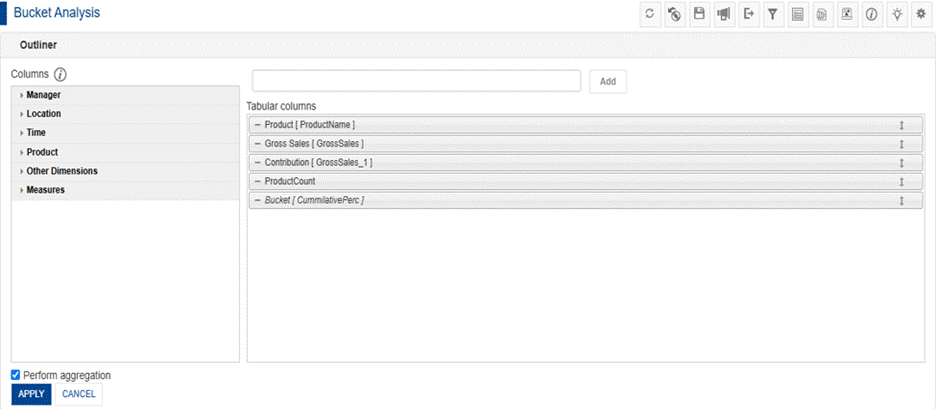
Figure 1. Product-wise Tabular configuration with Gross Sales and the additional measure for Contribution.
Step 2: Calculate Each Product’s Contribution Percentage
Rename the second Gross Sales column to Contribution. Right-click the Contribution column and apply the Column Percentage data operation. This converts each product’s Gross Sales into its percentage share of the overall Gross Sales displayed in the report.
Navigation: Right-click Contribution → Data Operation → Column Percentage
The calculation compares each product’s Gross Sales with the grand total for the report’s current data context. Make sure the expected products and filters are included when interpreting the percentages.
Contribution % = (Product Gross Sales ÷ Total Gross Sales) × 100
For example, if Whisky contributes 13.04% of total Gross Sales, its individual Contribution value is 13.04%. The contribution percentages across all included products should add up to approximately 100%, subject to rounding.
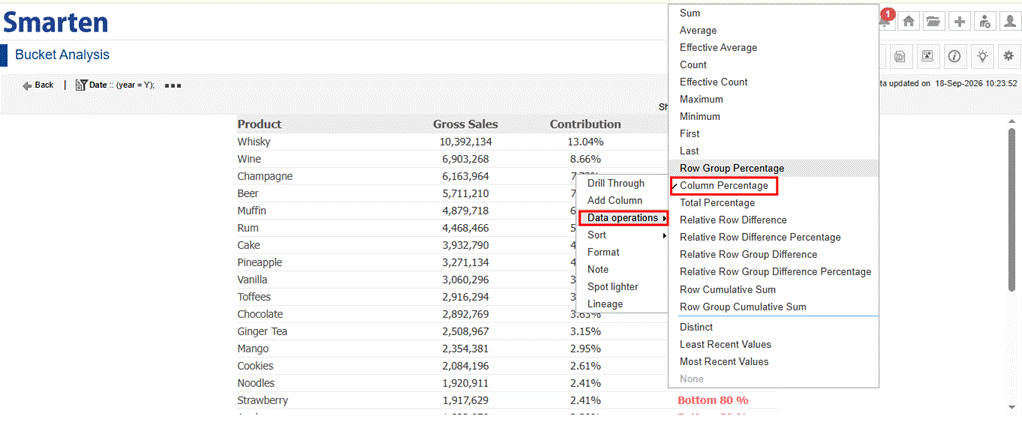
Figure 2. Applying the Column Percentage data operation to Contribution.
Step 3: Calculate the Running Cumulative Contribution
Create a User-Defined Data Column (UDDC) named CumulativePerc using the following expression:
columnPercentage(GrossSales)
Open the right-side settings and navigate to Manage UDDC → (+). Enter the UDDC name and expression, verify the expression, and save. Once the new measure appears under Measures in the Outliner, add it to the Tabular and select Apply. The UDDC initially returns the individual percentage contribution; the cumulative result is produced by the next data operation.
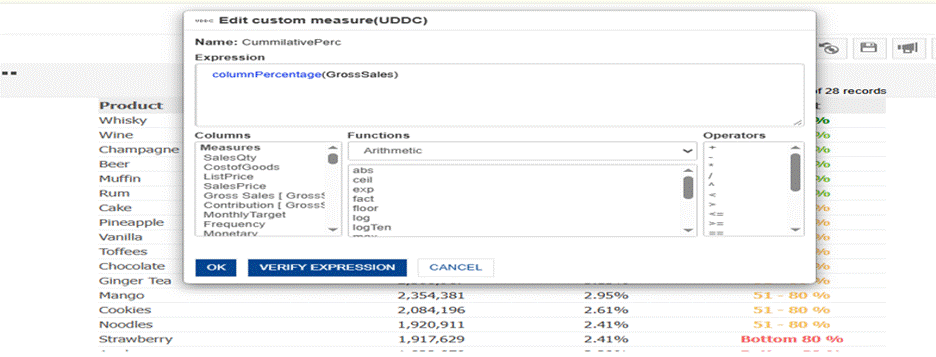
Figure 3. Creating the CumulativePerc UDDC in Smarten.
Sort the Tabular by Gross Sales in descending order before applying the cumulative calculation. Rename the newly added UDDC column to Bucket (its display name in this example). Then apply Row Cumulative Sum to that column.
Navigation: Right-click Bucket → Data Operation → Row Cumulative Sum
Row Cumulative Sum adds the individual contribution percentages from the first row down to the current row. With Gross Sales sorted from highest to lowest, the resulting value represents cumulative Gross Sales contribution. Sorting is essential: a different order changes the cumulative percentages and therefore the bucket assigned to a product.
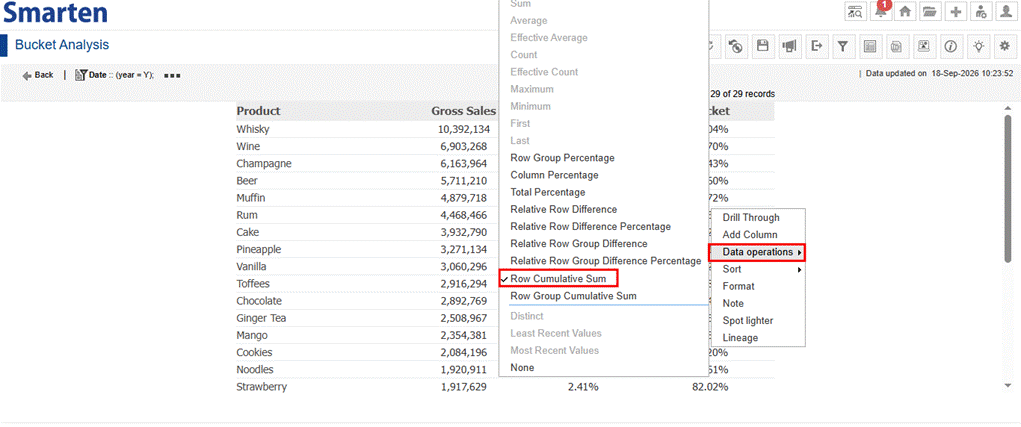
Figure 4. Applying Row Cumulative Sum to create the running cumulative percentage.
Example: The first product, Whisky, contributes 13.04%, so its cumulative contribution is 13.04%. Wine contributes another 8.66%, taking the cumulative contribution to 21.70%.
Product | Contribution % | Cumulative Contribution % |
Whisky | 13.04% | 13.04% |
Wine | 8.66% | 21.70% |
Important: This is a cumulative-contribution classification, not a ranking by the percentage of products. For example, a product with cumulative contribution of 21.70% belongs to the 20–50% range even if its individual contribution is only 8.66%. The defined ranges exclude their upper bounds, except for the final range.
Step 4: Classify Products Using Spotlighter
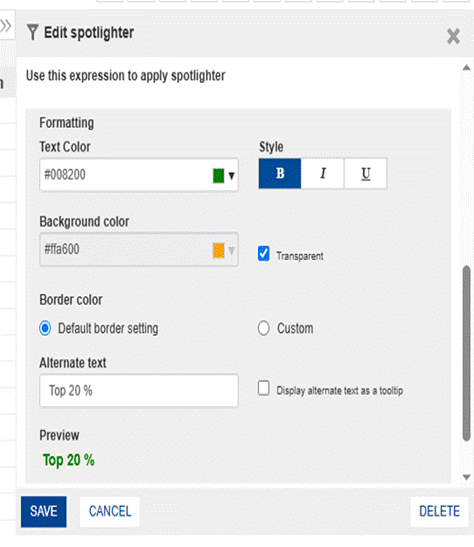
With the cumulative contribution calculated in the Bucket column, use Spotlighter to apply a condition for each threshold range. Configure Alternate Text to display the bucket label in place of the numerical cumulative percentage. You can also use formatting to make the classifications easy to distinguish visually.
 2)
2) 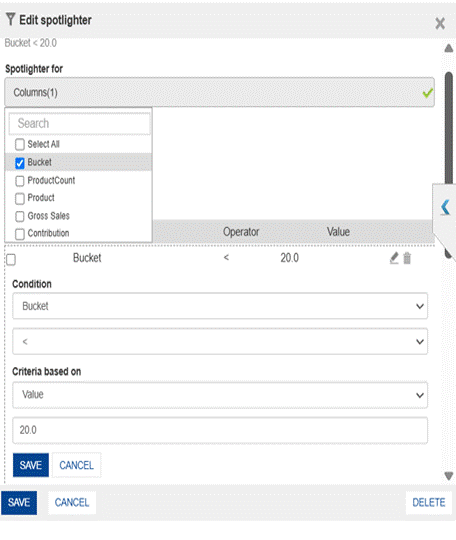
Figure 5. Spotlighter settings and the sample condition for the Top 20% bucket.
Range | Condition | Alternate Text |
Top 20% | Bucket < 20 | Top 20% |
21–50% | Bucket >= 20 AND Bucket < 50 | 21–50% |
51–80% | Bucket >= 50 AND Bucket < 80 | 51–80% |
Bottom 20% | Bucket >= 80 | Bottom 20% |
Configure the first rule using Bucket < 20 and the Alternate Text “Top 20%”. Repeat for the remaining three mutually exclusive conditions in the table. Ensure each condition uses the cumulative percentage rather than the individual product contribution. If percentages are represented on a 0–1 scale in your configuration, adjust threshold values accordingly.
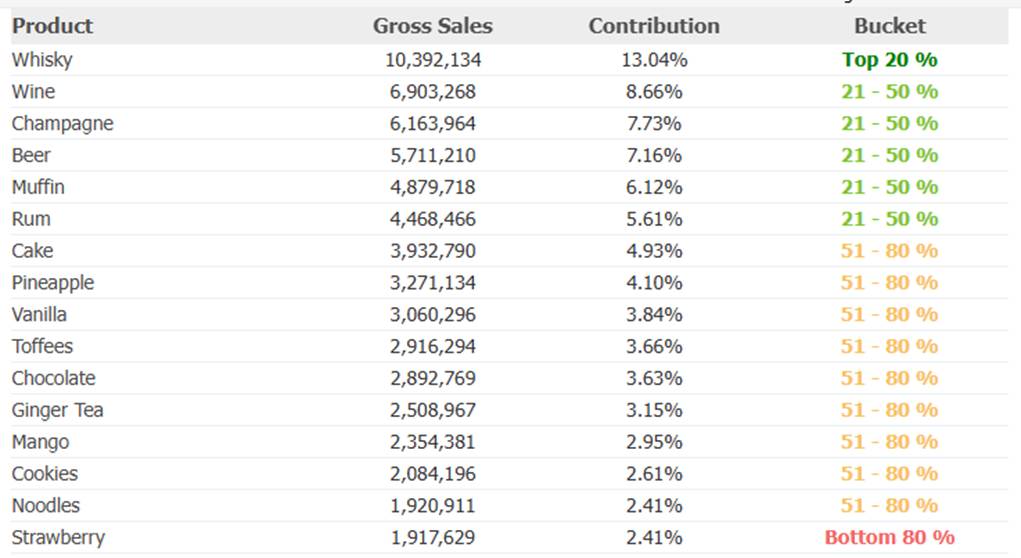
Figure 6. Product-level Tabular after the Spotlighter classifications have been applied.
Step 5: Calculate Bucket-wise Product Count and Gross Sales
For a large product portfolio, counting rows or totaling sales by hand is not practical. Create conditional UDDC measures that return 1 or the applicable Gross Sales amount only for products in the selected contribution range. These measures can then be aggregated in summary objects. In the formulas below, CumulativePerc denotes the cumulative contribution value used for bucket classification; use the exact field or calculation name available in your Smarten configuration.
5.1 Calculate Product Count for the Top 20% Bucket
Create a conditional UDDC to flag each product whose cumulative contribution is below 20%:
ifCase(CumulativePerc < 20, 1, 0)
The measure returns 1 for a qualifying product and 0 otherwise. Sum the values across products to obtain the Product Count for the Top 20% bucket. Count each distinct product once by ensuring the calculation is evaluated at product level.
5.2 Calculate Gross Sales for the Top 20% Bucket
Create another conditional UDDC to return Gross Sales only for the products in the same bucket:
ifCase(CumulativePerc < 20, GrossSales, 0)
This measure returns the product’s Gross Sales for qualifying products and 0 for all other products. Summing it produces total Gross Sales for the Top 20% bucket. The Product Count and Gross Sales expressions must use the same condition.
5.3 Repeat the Calculations for the Remaining Buckets
Implementation validation: The UDDC named CumulativePerc initially calculates individual column percentages. Step 3 then applies Row Cumulative Sum to that column in the Tabular. Before creating bucket summary measures, confirm that the formulas below can reference the resulting cumulative values in your Smarten environment. If the data operation is only available at the display level, the cumulative measure must first be made available to the conditional UDDCs through a supported calculation or data preparation approach. The conditional formulas below assume CumulativePerc refers to the cumulative contribution, not the original individual percentage. Use the exact verified measure name and test against the product-level Tabular.
Create equivalent Product Count and Gross Sales UDDCs for the 20–50%, 50–80%, and 80% or above cumulative-contribution ranges. Update only the conditions and output expressions. The table below provides formulas for all four buckets.
Bucket | Product Count Logic | Gross Sales Logic |
Top 20% | ifCase(CumulativePerc < 20, 1, 0) | ifCase(CumulativePerc < 20, GrossSales, 0) |
21–50% | ifCase(CumulativePerc >= 20 AND CumulativePerc < 50, 1, 0) | ifCase(CumulativePerc >= 20 AND CumulativePerc < 50, GrossSales, 0) |
51–80% | ifCase(CumulativePerc >= 50 AND CumulativePerc < 80, 1, 0) | ifCase(CumulativePerc >= 50 AND CumulativePerc < 80, GrossSales, 0) |
Bottom 20% | ifCase(CumulativePerc >= 80, 1, 0) | ifCase(CumulativePerc >= 80, GrossSales, 0) |
Step 6: Build the Crosstab or KPI Summary
Add the bucket-specific UDDC measures to a Crosstab and configure the aggregation to summarize Product Count and Gross Sales for each range. Alternatively, add the individual measures to KPI objects to display each bucket separately. The example dashboard combines overall KPIs, bucket-specific summaries, product details, and filters.
- Crosstab — compare Product Count and Gross Sales across all contribution buckets in a consolidated view.
- KPI — highlight a selected bucket metric, such as the Top 20% Product Count or Top 20% Gross Sales.
Validate the report by confirming that the sum of Product Count across buckets equals the number of distinct products included in the analysis, and that bucket Gross Sales totals reconcile with total Gross Sales. Check the results again whenever filters or sort order are modified. Once validated, the same setup can support portfolios with hundreds of products without manual counting.
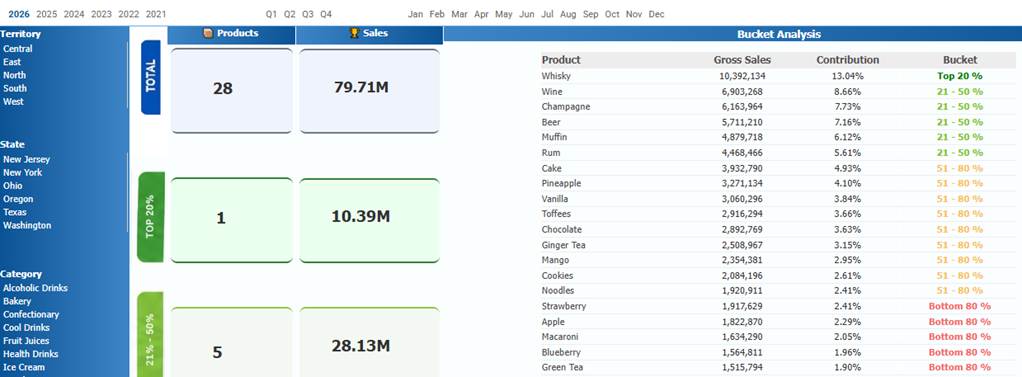
Figure 7. Example dashboard displaying bucket-wise Product Count and Gross Sales with a product-level contribution table.
7. Conclusion
This implementation brings together Smarten Tabular views, the Column Percentage and Row Cumulative Sum data operations, UDDCs, Spotlighter, Crosstab, and KPI capabilities. Together, they provide a repeatable way to identify high-contributing products, group products by cumulative sales contribution, and calculate bucket-level Product Count and Gross Sales automatically. By keeping the cumulative sort order and bucket conditions consistent, the same approach can be adapted to different product portfolios and analytical requirements.
Was this article helpful?
That’s Great!
Thank you for your feedback
Sorry! We couldn't be helpful
Thank you for your feedback
Feedback sent
We appreciate your effort and will try to fix the article